
Convert Logo to Stamp PNG Transparent: The 'No-Stress' Guide
Table of Contents
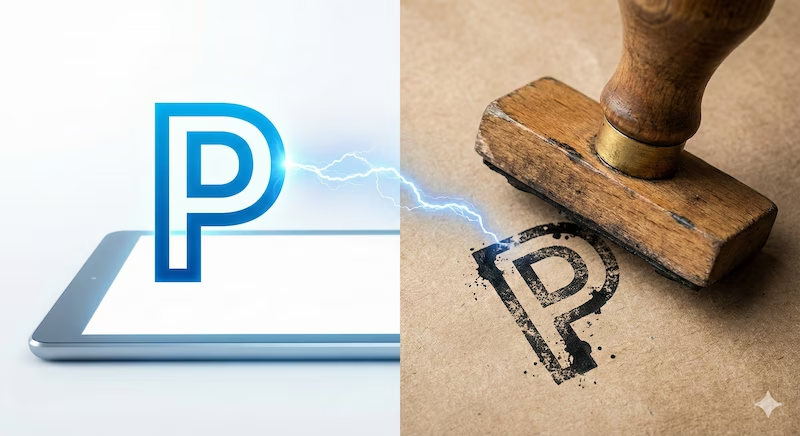
Let's be real for a second.
You have a perfectly good logo. It’s clean, it’s sharp, it’s vector-perfect. But when you slap it onto a vintage-style invoice or a moody photo background, it sticks out like a sore thumb.
It looks too... digital. Too perfect.
You want it to look like it was physically smashed onto the paper by a tired clerk in 1995. You want that ink bleed, the rough edges, and the missing bits. And crucially, you need it to blend in, not sit inside an ugly white box.
If you’ve ever tried to do this manually, you know the struggle. You open Photoshop, you stare at layers, you Google "free grunge texture," and 20 minutes later, you're still tweaking the "Threshold" slider thinking, "Why is this so hard?"
I’ve been there. I hated it. So I found a better way.
Here is the honest breakdown of how to get that look—the hard way, and the shortcut.
First: The "White Box" Problem (A Quick Rant)
Before we get to the fun part, we have to talk about file formats.
If you save your stamp as a JPG, you are shooting yourself in the foot. JPGs are allergic to transparency. They will always fill the empty space with white pixels. Put that on a colored background, and it looks like a cheap bumper sticker.
You need a PNG. Think of a JPG like a sticker (it has a backing paper). Think of a PNG like a tattoo or a stencil (the ink goes directly onto the surface). We want the tattoo.
Method 1: The Shortcut (PixSprout)
Full disclosure: I actually built PixSprout because I am lazy.
Well, "efficient." I got tired of the Photoshop dance every time I wanted a quick stamp effect for a project. I wanted a button I could press that just did the thing.
So, here is the "lazy" workflow:
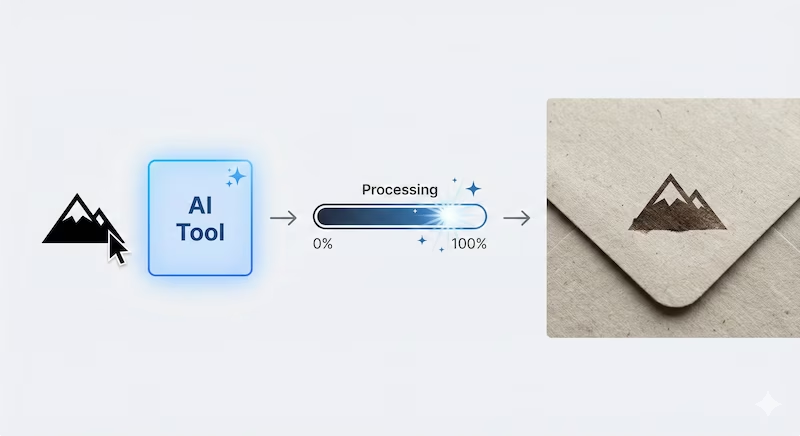
- Drop It Like It's Hot: Drag your logo into our Image to Stamp Tool.
- Let the AI Cook: Instead of just slapping a generic noise filter on top, the AI actually looks at your design. It eats away at the edges and adds "ink starvation" spots inside the letters. It mimics how real rubber acts when it hits paper.
- Done: You get a crispy, transparent PNG.
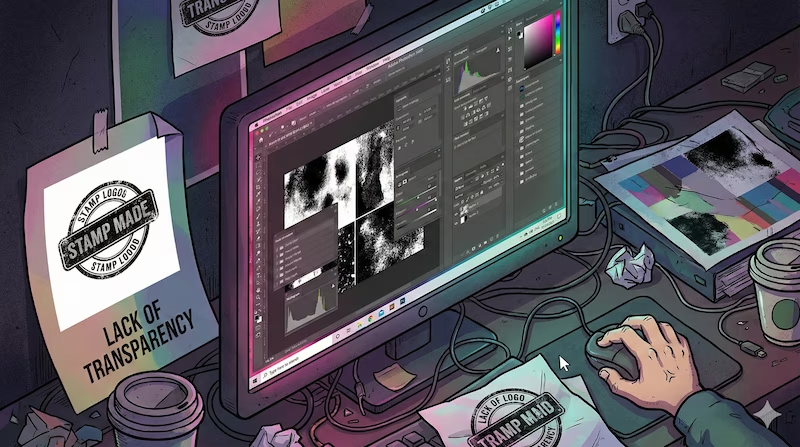
It takes about 30 seconds. You can go back to doing actual work.
Method 2: The "Photoshop Rabbit Hole"
If you are a purist, or if you just enjoy the zen of moving sliders for hours (hey, I get it), you can do this manually. It gives you total control, but it costs time.
Here is the drill:
- Desaturate: Open your logo and drain all the color. Make it black.
- The Hunt: Go to Google Images. Search for "grunge texture." Try to find one that isn't watermarked or low-res. (Good luck).
- Mask Mode: Add a Mask to your logo layer.
Alt-Clickthe mask. Paste your texture inside the mask. - The Tweak: This is the annoying part. You have to use Levels (
Ctrl+L) to make the texture black enough to hide parts of your logo, but not so black that it erases your name. - Export: Don't forget to hide the background layer before you save, or you'll still get the white box!
It works, but it feels like washing dishes by hand when you have a dishwasher.
Two Mistakes I See Everyone Make
Whether you use my tool or Photoshop, please don't do these two things. It ruins the vibe.
1. The "Ghost" Stamp Don't make the opacity 100%. Real ink is never 100% solid black, especially on textured paper. Pro Tip: When you put your stamp on a document, lower the opacity to 90% or 85%. It lets a tiny bit of the background texture show through the ink. It tricks the brain into thinking it's real.
2. The "Unreadable" Grunge We all love the vintage look, but don't overdo it. If your client can't read the company name because a giant scratch texture wiped out the first three letters, the design failed. Less is often more.
Final Thoughts
A digital stamp is a small detail, but it adds a lot of personality. It says "Human."
- If you have time to kill and love layers: Photoshop is your friend.
- If you just want the file so you can move on with your life: PixSprout is here for you.
Go make something cool.
Recommended Posts
Stop Getting Hand Cramps: The Brutal Truth About Signature Stamp Makers
Tired of signing hundreds of checks by hand? Most custom signature stamps end up looking like smudged garbage. Here's exactly how to get one that actually works.
Custom Stamp Maker Guide: DIY Machines vs. Pro Services vs. AI Tools
Stop wasting money on bad ink. Here’s the honest truth about custom stamp makers, from the Silhouette Mint to digital AI design tools.
AI Stamp Maker: Stop Overpaying for Custom Digital Seals (2026 Guide)
Still waiting days for a designer to make a simple stamp? Stop. Here’s how AI stamp makers let you generate custom, vintage, or business seals in seconds.
Pet Memorial Stamp Design Maker: Turning Memories into Keepsakes
The house feels too quiet? Create a custom pet memorial stamp to honor your best friend. A simple, heartfelt guide to turning photos into lasting tributes.
Custom Portrait Stamp Maker for Wedding: The DIY AI Guide
Don't pay the 'wedding tax' for custom art. Learn how to use AI to generate your own wedding portrait stamp design in seconds with PixSprout.
Create Date Stamp Image Online: Free AI Tools & Easy Methods
Tired of boring date stamp templates? Learn how to generate custom, vintage, or gritty date stamps from text prompts using PixSprout.
Comments
No comments yet